Build a clear clue, one shape at a time
The workbench is deliberately small. Learn what each tool does, then spend your turn deciding which details actually help your friends guess.
Choose a starting shape
- Cube
- Start walls, vehicle bodies or tables here. Scale an axis to make a plank or slab.
- Sphere
- Use for heads, fruit and rounded details; stretch it into an oval when needed.
- Cylinder
- Good for wheels, trunks, cups and rocket bodies. Rotate it sideways for a horizontal axle.
- Cone
- A pointed roof, nose or treetop. Several different sizes can suggest a fir tree.
These are the four building primitives. Cutters remove material rather than adding extra building shapes. The scene limit is 100 objects.
Transform, color and correct
Select an object, choose Move, Rotate or Scale and drag its colored handles. Move changes position, Rotate changes angle and Scale changes size. Check more than one view: a piece that looks connected from the front may be floating behind the model.
The color control changes selected objects. Duplicate copies your selection; Delete removes it. Undo restores an earlier edit and Redo reapplies an undone edit. This history belongs to the current editor session, not a permanent cloud archive.
Work with several pieces
Use Multi-select to toggle objects into or out of the selection, or Shift-click, Ctrl-click or Command-click. Select All selects every object. Move and rotate the group without merging its pieces. Group scaling is uniform; a single object can be stretched along one axis.
Cut away material
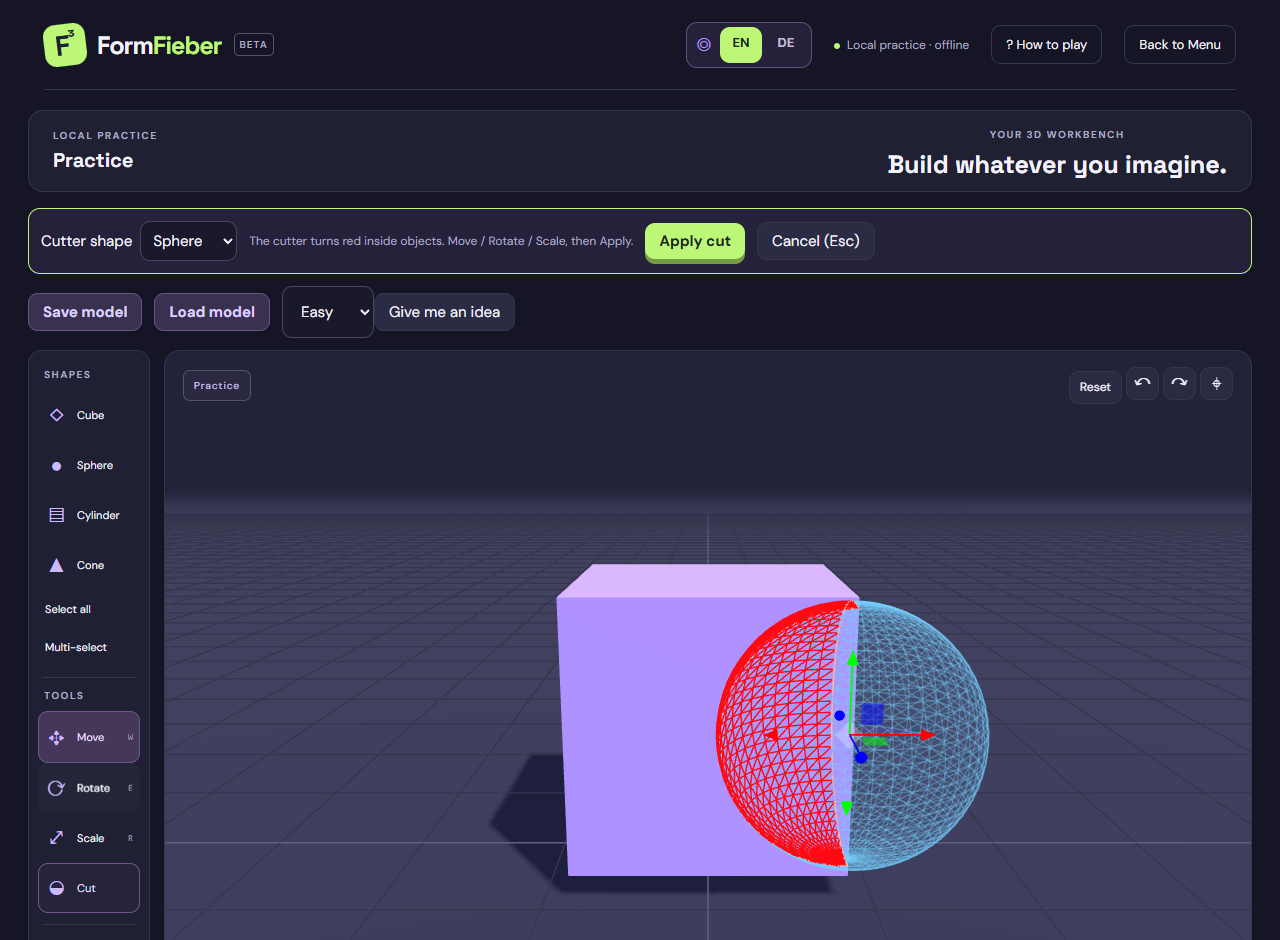
- Choose Cut. No object selection is required.
- Choose Sphere, Cube, Cylinder, Cone, Box, Capsule or Ring.
- Move, rotate and scale the preview. It is blue outside the models and red where it enters remaining solid material.
- Choose Apply cut. The preview disappears and the removed volume becomes real geometry.
All overlapping objects can be cut, including unselected ones. Inspect another angle before applying. Geometry is calculated on Apply, not continuously during positioning. Cancel or Esc discards the preview; Undo restores an applied cut.
Try a tunnel
Push a narrow cylinder fully through a cube and apply it. A sphere partly inside the cube makes a rounded indentation instead. Missing all solid material changes nothing. Repeated cuts increase complexity, and overly complex cuts can be rejected. Prefer a few purposeful cuts to many tiny ones.
Camera and shortcuts
| Action | Control |
|---|---|
| Orbit / pan / zoom | Left-drag empty space / right-drag / wheel |
| Move camera | Hold left mouse in canvas + WASD or arrow keys |
| Move / Rotate / Scale | W / E / R |
| Select All / Duplicate | Ctrl or Command + A / D |
| Delete | Delete or Backspace |
| Undo / Redo | Ctrl or Command + Z / Y; Ctrl or Command + Shift + Z also redoes |
Shortcuts do not edit while you type in a field. Camera movement takes priority when the mouse is held for navigation. Use Reset camera to return to the starting viewpoint. On touch devices, try the buttons and camera gestures in Practice; precise editing is easier with a mouse or trackpad.
A quick building routine
Silhouette, clue, cleanup
Block out the largest shape. Add the feature that separates your object from similar things: wings for a plane, a handle for a cup, a seat for a chair. Check the view and remove distracting details. Do not spend the whole timer on hidden surfaces.
In Practice, Save model downloads a JSON file and updates the device save. Load model opens a compatible file in Practice. Multiplayer exports contain model data, not votes or a public Gallery post. Learn about timed turns in How to Play.